
To set up your company information, go to weMail → Settings → Company Details.
This section helps you configure your sender identity, which is required for sending emails and ensuring compliance with email regulations.
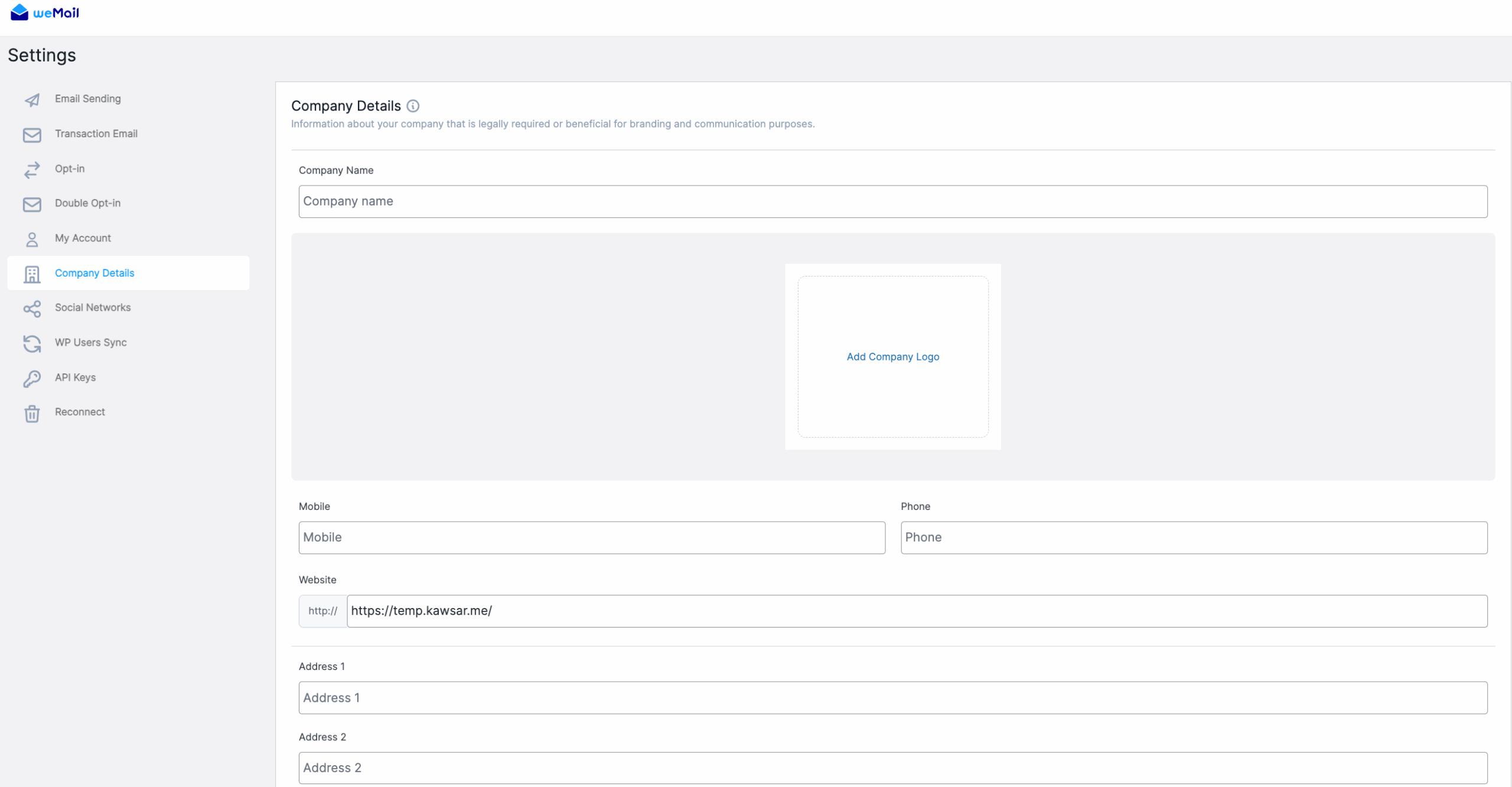
Add Your Company Details
Fill in your company information as shown below:
Company Name
Enter your organization or brand name. This will appear as the sender name in your email campaigns.
Add Company Logo
Upload your company logo. It helps personalize and brand your outgoing emails.
Mobile / Phone
Add your company’s contact numbers.
Providing both mobile and phone numbers is optional but helps establish trust and authenticity.
Website
Enter your official website URL.
It appears in your email footer and ensures your domain aligns with your sender identity.
Address 1 / Address 2
Provide your complete company address.
This is required for email compliance (like CAN-SPAM and GDPR) and builds subscriber confidence.
Save Changes
After filling out all details, click Save Changes to apply and update your company profile.
The Second Step is done!